How to Use Mendeley for Academic Reference Management
Learn how to use Mendeley for academic reference management, from thesis setup and PDF annotation to exporting citations into your study notes.
Table of Contents
- Setting Up Mendeley for a Thesis, Dissertation, or Research-Heavy Certification
- Install the Right Extensions and Plugins
- Build Consistent Metadata Habits
- Use Groups for Collaboration
- Sync Across Devices
- Manage Duplicates and Conflicting Files
- Annotating PDFs in Mendeley for Integrated Reading and Study
- Color-Code Your Annotations
- Extract Quotes as You Read
- Summarize in Your Own Words
- Exporting Mendeley References to Note-Taking Systems for Cross-Linked Study
- Cite While You Write
- Export to BibTeX, RIS, or CSV
- Link Sources to Your Own Notes
- Mendeley vs. Building a Digital Study Library
- When to Look Beyond Mendeley
- Make It Easier With LongTerMemory
If you have ever lost a citation, forgotten where you saved a PDF, or spent an hour reformatting a bibliography, you already understand why reference management matters. A good academic reference manager turns a chaotic pile of articles into an organized, searchable library that follows you across devices. Mendeley is one of the most popular tools for this, and it is especially useful for students writing theses, dissertations, or research-heavy certification papers.
Mendeley does three things exceptionally well. It stores and organizes your research documents, it lets you annotate PDFs without needing a separate app, and it generates citations and bibliographies in the style your institution requires. When you connect it to your note-taking system, it becomes the central hub for everything you read.
Setting Up Mendeley for a Thesis, Dissertation, or Research-Heavy Certification
The first step is to create a free Mendeley account and install both the desktop application and the web importer browser extension. The desktop app is where you will organize your library, read and annotate PDFs, and generate citations. The web importer lets you save articles directly from databases like PubMed, Google Scholar, and JSTOR with one click.
Once the software is installed, set up a folder structure that matches your project. For a thesis or dissertation, you might create top-level folders for each chapter and subfolders for major themes. For a certification paper, you could organize by exam domain or topic. The goal is to make it obvious where any new paper belongs the moment you import it.
Install the Right Extensions and Plugins
To get the most out of Mendeley, install the web importer in every browser you use for research. When you find an article, click the importer icon and Mendeley will capture the citation and, in many cases, the PDF. Also install the word processor plugin for Microsoft Word, LibreOffice, or Google Docs. This plugin is what makes “cite while you write” possible, and it will save you enormous amounts of time during drafting.
Build Consistent Metadata Habits
Every PDF you add should have clean metadata: author, title, journal, year, DOI, and page numbers. Mendeley can often pull this automatically, but it is not perfect. Get into the habit of checking the details immediately after import. A few seconds of cleanup now saves hours of frustration later when you are trying to cite a source and the bibliography entry is wrong.
You can also add tags and notes to each reference. Tags are useful for cross-cutting themes that do not fit neatly into folders, such as “methodology critique” or “needs follow-up.” Notes let you record why the paper matters and how you plan to use it. These small additions turn a static library into a working research database.
Use Groups for Collaboration
If you are working with advisors or peers, Mendeley groups let you share references and annotations. Private groups are ideal for thesis committees or small research teams. Public groups can help you discover related work in your field. Shared libraries keep everyone on the same page and reduce the endless email threads about whether someone saw a particular paper.
Sync Across Devices
Mendeley stores your library in the cloud, which means you can access it from your laptop, tablet, or any computer with the desktop app or web interface. Make sure syncing is enabled and working. There is nothing worse than annotating a PDF on one device and finding the annotations missing on another because sync was turned off.
Manage Duplicates and Conflicting Files
Over the course of a long project, it is easy to import the same paper twice or end up with multiple versions of the same PDF. Mendeley has a duplicate detection feature that can help you merge redundant entries. Take a few minutes each month to clean up duplicates, delete unused files, and check that each reference has a working PDF attached. A lean library is much easier to search than a bloated one.
Annotating PDFs in Mendeley for Integrated Reading and Study
Reading academic papers is not the same as reading a novel. You need to extract arguments, note methods, flag limitations, and connect ideas across sources. Mendeley’s built-in PDF reader lets you do all of this without leaving the app.
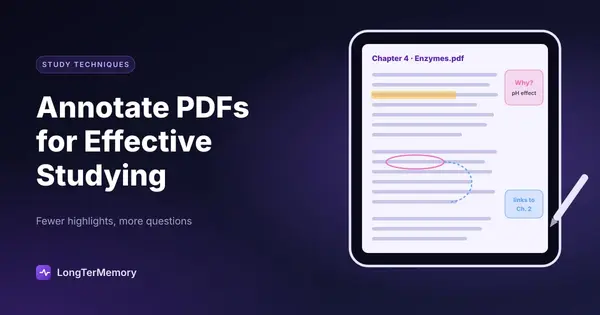
When you open a PDF, you can highlight text, add sticky notes, and draw on the page. The best approach is to annotate with retrieval in mind. Instead of highlighting entire paragraphs, highlight only the sentence or phrase that captures the core claim. Then add a note that explains why it matters in your own words. This simple habit forces you to process the material actively rather than just marking it.
Color-Code Your Annotations
A consistent color system makes your annotations far more useful later. For example, use yellow for key claims, green for supporting evidence, blue for methodological details, and red for criticisms or limitations. When you come back to a paper months later, the colors instantly tell you what each annotation contains.
Extract Quotes as You Read
Whenever you find a sentence you might quote, copy it into the notes field with the page number. This prevents the dreaded late-night hunt for “that one phrase I remember reading somewhere.” It also helps you avoid accidental plagiarism, because you know exactly which words are yours and which belong to the original author.
Summarize in Your Own Words
After finishing a paper, write a one-paragraph summary directly in Mendeley. This summary becomes a quick refresher when you return to the source later. It also serves as a sanity check. If you cannot summarize the paper simply, you probably do not understand it well enough to cite it confidently.
Exporting Mendeley References to Note-Taking Systems for Cross-Linked Study
A reference manager is most powerful when it connects to your broader study system. Mendeley makes this easy through plugins, export options, and citation keys.
Cite While You Write
Mendeley offers plugins for Microsoft Word, LibreOffice, and Google Docs. While you write, you can insert citations from your library with a couple of clicks and then generate a perfectly formatted bibliography. When your advisor asks for APA instead of Chicago, you change the style globally in seconds rather than reformatting every entry by hand.
Export to BibTeX, RIS, or CSV
If you prefer a plain-text workflow in Obsidian, Notion, or another note-taking app, export your Mendeley library as a BibTeX or RIS file. These formats can be imported into tools like Zotero, Readwise, or custom note systems. Some students keep a master bibliography file in their notes and link each source to project pages, concept maps, or flashcard decks.
Link Sources to Your Own Notes
A practical workflow is to create one note per paper or book chapter. The note contains the citation, a one-paragraph summary, key quotes, and your own questions. From there, link the note to related concepts in your knowledge base. Over time, you build a web of connected ideas rather than a stack of isolated PDFs.
This approach also pairs naturally with active recall. After reading a paper, close it and write a summary from memory. Then check your Mendeley notes to see what you missed. The gaps you identify become your review targets.
Mendeley vs. Building a Digital Study Library
Mendeley is excellent for reference management, but it is not a spaced repetition or flashcard system. For exam-heavy study, combine it with a tool that turns your reading into reviewable questions. The following table shows how Mendeley fits into a complete academic workflow:
| Task | Best Tool Type | Why |
|---|---|---|
| Storing and organizing PDFs | Reference manager, Mendeley | Keeps metadata, full text, and annotations in one place. |
| Capturing key claims | Annotation + note-taking app | Turns reading into reusable notes. |
| Memorizing definitions and facts | Spaced repetition flashcards | Schedules review at optimal intervals. |
| Generating bibliographies | Mendeley cite plugin | Formats citations automatically. |
| Connecting ideas across papers | Linked notes or concept maps | Builds deeper understanding. |
When to Look Beyond Mendeley
Mendeley works well for many students, but it is not the only option. If you need advanced note-linking, tools like Obsidian or Zotero may fit better. If you want automatic flashcard generation from your reading, a dedicated study tool will save you time. The key is to build a workflow that supports both organization and retention, not just one or the other.
Make It Easier With LongTerMemory
Reference management is only half the battle. The real goal is to remember and use what you read. LongTerMemory complements Mendeley by turning your PDFs and notes into AI-generated flashcards and quizzes based on spaced repetition. Instead of manually copying every key fact into a card deck, you upload your source material and let the system create the questions for you. If you are preparing for a research-heavy certification or writing a thesis, combining Mendeley for organization with LongTerMemory for retention gives you the best of both worlds. Try it free and spend less time formatting references and more time actually learning.