How to Use Zotero for Managing Research References
Learn how to set up Zotero to organize academic references, cite sources instantly, and integrate it with Obsidian for deeper research retention.
Table of Contents
- What Zotero Actually Does
- Setting Up Zotero for a New Research Project
- Step 1: Download Zotero and the Browser Connector
- Step 2: Create a Collection for Your Project
- Step 3: Add Sources in Bulk
- Step 4: Organize With Tags
- Using Zotero to Quickly Retrieve and Cite Sources
- Reading and Annotating Within Zotero
- Integrating Zotero With Obsidian for Deeper Retention
- Syncing Across Devices
- Practical Tips for Long-Term Use
- Why Reference Management Pays Off in Study Contexts Too
- The Bottom Line
There’s a certain kind of chaos that only researchers and serious students know: the pile of open browser tabs, the folder of PDFs with names like “article-final-FINAL2.pdf,” the vague memory that you read something relevant last week but you cannot for the life of you find it now.
If that description sounds painfully familiar, you’re probably managing your sources by hand. Which means you’re spending cognitive energy on organization that could be spent on actual learning.
Zotero is the solution that serious academic researchers have been using for years, and it’s completely free. It’s a reference manager that collects, organizes, cites, and stores your sources in one place. Once you set it up properly, the mechanics of research administration mostly disappear, and you can focus on what the sources actually say.
This guide covers how to get started, how to integrate Zotero into different study workflows, and how to connect it with other tools for deeper retention of what you read.
What Zotero Actually Does
Before getting into the setup, it’s worth being clear about what Zotero is and isn’t.
Zotero is a reference manager. It:
- Stores all your academic sources (papers, books, articles, webpages) in one place
- Automatically retrieves metadata (author, title, journal, year, DOI) for most sources
- Generates formatted citations in any style you need (APA, MLA, Chicago, Harvard, etc.)
- Syncs across devices via the cloud
- Stores PDFs alongside their citation data
- Lets you annotate PDFs and keep those annotations linked to the source
Zotero is not a note-taking app in the traditional sense. It’s not where you write your analysis of what you read. For that, most serious researchers pair Zotero with something else: Obsidian, Notion, a plain text editor, or any dedicated note-taking tool. More on that combination later.
The core value is this: Zotero removes the friction between finding a source and using it. When you add a paper to Zotero, you can cite it correctly one click later, find it by searching any part of its content or metadata, and access the full text without hunting through folders.
Setting Up Zotero for a New Research Project
Step 1: Download Zotero and the Browser Connector
Start at zotero.org. Download the main app for your operating system, then install the Zotero Connector browser extension for whichever browser you use (Chrome, Firefox, Safari, and Edge are all supported).
The Connector is what makes Zotero genuinely fast. When you’re on a web page, a Google Scholar result, a journal article, or even an Amazon book listing, clicking the Connector icon captures all the source metadata automatically. No manual entry needed.
Step 2: Create a Collection for Your Project
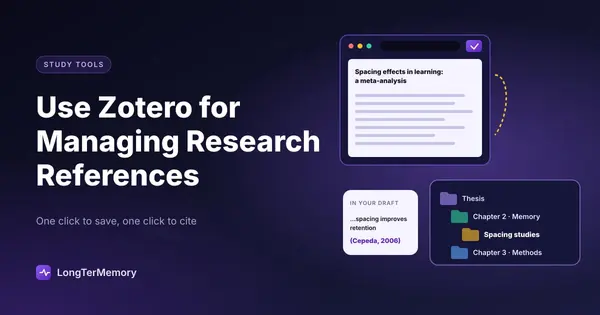
Zotero uses “Collections,” which are essentially folders, to organize your library. Create one collection per course, research project, or certification exam you’re studying for.
For example:
- “Biochemistry Final - Spring 2026”
- “CISSP Certification Prep”
- “Thesis Research - Chapter 3”
You can nest collections inside each other, and a single source can belong to multiple collections without duplicating it. This is useful when a paper is relevant to more than one project.
Step 3: Add Sources in Bulk
Once your Connector is installed, adding sources becomes almost effortless:
- From a journal website or Google Scholar: click the Connector icon. For a search results page showing multiple articles, you’ll get a list to choose from. For a single article page, it captures that article directly.
- From a PDF on your computer: drag it into Zotero. It will attempt to retrieve the metadata automatically. For most academic PDFs with a DOI or standard header, this works immediately.
- From an ISBN: go to Zotero, click the magic wand icon, type an ISBN, and the book metadata populates instantly.
- From a DOI: same magic wand, type the DOI, done.
- Manually: for unusual sources that don’t auto-populate, you can enter metadata by hand.
Step 4: Organize With Tags
Tags in Zotero work differently from collections. A source can have many tags, which lets you create cross-cutting categories that don’t map cleanly to a folder structure. For research-heavy projects, useful tags might include:
- “high-priority” for must-read sources
- “cited” for sources you’ve already used in writing
- “needs full text” for entries where you haven’t yet obtained the PDF
- Topic tags like “methodology,” “quantitative,” “literature review”
You can filter your library by any tag combination to quickly surface what you need.
Using Zotero to Quickly Retrieve and Cite Sources
The payoff of maintaining a Zotero library becomes most obvious when you’re actually writing.
In Microsoft Word, LibreOffice, and Google Docs, Zotero installs a plugin that lets you insert citations directly without leaving your document. Place your cursor where you want the citation, click “Add Citation,” search your Zotero library by title, author, or keyword, and the formatted citation appears. When you’re done, generate the bibliography with one click.
The key workflow is:
- You’re writing. You want to cite something.
- Click “Add Citation.”
- Search by any word you remember from the title or author name.
- Click the result. The citation appears in whichever format your document is set to (APA, Chicago, etc.).
This saves an enormous amount of time compared to manually formatting citations or using citation websites that require you to enter information by hand.
For exam prep and course study (rather than writing), Zotero’s retrieval function is equally useful. You remember reading something about a specific mechanism or concept. Instead of trying to find which tab you left open or which folder you saved the PDF to, you search Zotero. Its full-text search finds the paper in seconds.
Reading and Annotating Within Zotero
Zotero has a built-in PDF reader with annotation tools. You can:
- Highlight text in different colors (useful for coding by theme or importance)
- Add notes to specific passages
- Create summary notes that appear in the sidebar alongside the PDF
All annotations are stored inside Zotero and attached to that source’s entry. When you later look at the source in your library, your highlights and notes are right there. No separate app needed, no risk of annotation files getting separated from their source.
For efficiency, use color coding consistently. For example:
- Yellow: key evidence or argument
- Blue: methodology or data
- Green: quotes you might want to use directly
- Red: something you want to question or dispute
The discipline of annotation makes reading more active, which improves retention compared to passive reading. You’re forced to decide, as you go, which parts matter enough to mark.
Integrating Zotero With Obsidian for Deeper Retention
For researchers who want a more connected, long-term knowledge system, pairing Zotero with Obsidian is a popular and powerful combination.
Obsidian is a note-taking app that stores everything as plain-text markdown files. It’s highly customizable and has a strong plugin ecosystem. The Zotero Integration plugin for Obsidian allows you to:
- Import a source from Zotero into Obsidian as a new note, with metadata pre-populated
- Create a literature note template that automatically includes the citation info, abstract, and your annotations from Zotero
- Link your notes on a source to related concept notes in your knowledge base
The workflow looks like this:
- Add a source to Zotero. Read and annotate it in Zotero’s PDF reader.
- Use the Obsidian plugin to import the source as a literature note. Your highlights and comments transfer automatically.
- Write your own analysis, connections, and insights as a separate note in Obsidian, linked to the literature note.
- Connect that note to other concept notes in your Obsidian vault using bidirectional links.
The result is a personal research knowledge base where every idea is traceable back to its source, and related ideas are linked together in a way that makes synthesis far easier when it’s time to write.
For certification exam prep, this structure is also useful: you import high-yield study materials into Zotero, annotate the key concepts, pull them into Obsidian as study notes, and link them by exam domain or concept cluster.
Syncing Across Devices
Zotero syncs metadata and library data for free across all devices. For PDF storage, free accounts get 300MB of cloud storage. If your library has a lot of PDFs, you have two options:
- Upgrade to a paid Zotero storage plan (reasonably priced and supports the development of a free tool)
- Use WebDAV to point Zotero’s attachment storage to your own cloud service (Dropbox, Box, your own server)
Either way, your citations, annotations, and library structure sync automatically. You can add a paper on your laptop and access it on your tablet without doing anything.
For shared research projects or study groups, Zotero also supports group libraries: shared collections that multiple users can contribute to. This is useful for collaborative courses or when a study group is collectively building a resource library.
Practical Tips for Long-Term Use
A few habits make Zotero more useful over time:
Add everything as you encounter it, not when you need it. The moment you think “this might be relevant,” add it. It takes five seconds with the Connector, and the alternative is spending ten minutes hunting for something you vaguely remember later.
Never trust auto-populated metadata blindly. Zotero is excellent at retrieving metadata, but it makes mistakes. Always glance at the author, year, title, and journal before you rely on the entry for a citation. A few seconds of verification saves embarrassing errors in submitted work.
Use the related items feature to link sources that address similar topics. When you’re writing and pulling from one source, Zotero will remind you which other sources are related. This nudge can surface relevant materials you’d otherwise forget you had.
Export your library periodically. Even though Zotero is stable, backing up a RIS or BibTeX export of your library occasionally is good practice. It takes thirty seconds and means your entire reference collection is portable if you ever switch tools.
Why Reference Management Pays Off in Study Contexts Too
Most guides to Zotero focus on academic writing, and for good reason. But the benefits extend to structured study for certifications and exams too.
When you’re preparing for a high-stakes exam from multiple sources (prep books, official guides, white papers, academic articles), Zotero gives you a single organized home for all of it. You can search by concept across all your sources. You can tag by exam domain. You can annotate within a document and find your notes later without hunting.
LongTerMemory works alongside this kind of research workflow: where Zotero organizes your source library and preserves your reading notes, LongTerMemory’s AI generates Q&A flashcards from your study materials and schedules them for spaced repetition. Together, they cover the two phases of serious study: organized input and active retention.
The Bottom Line
Zotero is one of those tools where the initial setup investment pays off immediately and keeps paying off for as long as you’re doing research or serious study. The alternatives, which mostly involve folders of PDFs, browser bookmarks, and manual citation formatting, are just a slow way to lose information you’ve already found.
Getting started is genuinely easy. Download Zotero, install the browser connector, create a collection for your current project, and start adding sources as you find them. Within a week, you’ll have the foundation of an organized research library that you can search, cite from, and build on indefinitely.
The sources you need are already out there. Zotero makes sure that once you find them, you don’t lose them again.