How to Use Apple Notes vs. Evernote for Studying
Apple Notes vs. Evernote for studying: a practical comparison to help you pick the right note app and build a smarter study workflow.
Table of Contents
- What Each App Is Actually Designed For
- Feature Comparison for Academic Use
- Apple Notes: Where It Truly Shines for Students
- Speed and Zero Friction
- Apple Pencil Integration
- Locked Notes and Privacy
- iCloud Sync is Seamless
- Where Apple Notes Falls Short for Serious Students
- No Web Clipping
- Limited Organization Beyond Folders
- No Cross-Platform Support
- Evernote: Where It Shines for Students
- Web Clipper Is Genuinely Transformative
- Tagging and Notebook System
- PDF Search and Annotation
- Cross-Platform Access
- Where Evernote Falls Short
- The Free Tier Has Become Very Limited
- Complexity and Cognitive Overhead
- Sync Speed and Reliability
- Which App Integrates Best with Your Study Workflow?
- Choose Apple Notes If:
- Choose Evernote If:
- A Practical Setup for Each App
- Setting Up Apple Notes for Studying
- Setting Up Evernote for Studying
- Migrating Between Apps Without Losing Your Study History
- What About Notion, Obsidian, or Other Alternatives?
- Using AI to Supercharge Your Note-Taking
- The Bottom Line
If you’ve ever stared at a blank screen wondering where to put your lecture notes, you’re not alone. Choosing a note-taking app sounds like a minor decision, but when you’re managing hundreds of pages of study material across multiple subjects and devices, it genuinely matters. The wrong app creates friction. The right one disappears into the background and lets you focus on actually learning.
Two apps consistently come up in this conversation: Apple Notes and Evernote. Both are powerful, both are popular, and both work completely differently. This guide breaks down what each one actually does well, where it falls short for students specifically, and how to figure out which one fits your study workflow.
What Each App Is Actually Designed For
Before getting into features, it helps to understand the philosophy behind each tool.
Apple Notes is built for speed and simplicity. It’s Apple’s default note app, which means it’s deeply integrated into iOS and macOS. Apple designed it to be the thing you reach for when you need to jot something down fast, with minimal setup and zero friction. Over the years, Apple has added surprisingly powerful features, but the core experience is still about quick capture.
Evernote, on the other hand, was designed from the ground up as a knowledge management system. The original pitch was essentially “your second brain,” a place where you could store everything, search everything, and find anything years later. It’s more powerful, more configurable, and significantly more complex.
That fundamental difference shapes everything else.
Feature Comparison for Academic Use
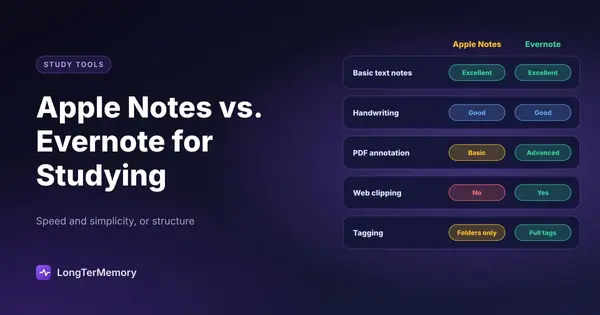
Let’s get specific. Here’s how each app handles the things students actually need:
| Feature | Apple Notes | Evernote |
|---|---|---|
| Basic text notes | Excellent | Excellent |
| Handwriting / sketching | Good (Apple Pencil) | Good |
| PDF annotation | Basic | Advanced |
| Web clipping | No | Yes (via extension) |
| Tagging | Limited (folders only) | Full tagging system |
| Search inside PDFs | No | Yes (paid plans) |
| Cross-platform | Apple only | iOS, Android, Windows, Mac, Web |
| Offline access | Yes | Paid plan only (full) |
| Price | Free | Freemium (limited free tier) |
| Collaboration | Basic sharing | Full shared notebooks |
| AI features | Minimal | Yes (paid) |
That table already tells most of the story, but let’s dig deeper into what these differences mean in practice.
Apple Notes: Where It Truly Shines for Students
Speed and Zero Friction
The biggest genuine advantage of Apple Notes is how fast it gets out of your way. You open it, you type. No loading screens, no syncing spinners, no account verification. If you’re in a lecture and the professor is talking fast, the last thing you want is a 3-second app launch delay.
This sounds trivial until you’ve lost the first line of a key explanation because your note app was still syncing. Apple Notes is instant.
Apple Pencil Integration
If you use an iPad with an Apple Pencil, Apple Notes is genuinely impressive. Handwriting converts to searchable text automatically. You can mix typed and handwritten notes in the same document, draw diagrams mid-note, and annotate images directly. For STEM subjects where diagrams matter, this workflow is hard to beat.
Locked Notes and Privacy
Apple Notes lets you lock individual notes with Face ID, Touch ID, or a password. For sensitive study material, like practice exam questions you don’t want others to see, this is a useful, often overlooked feature.
iCloud Sync is Seamless
If you live in the Apple ecosystem (iPhone, iPad, Mac), iCloud sync is almost magic. Open a note on your Mac, pick it up on your iPhone without doing anything. There are no settings to configure, no conflicts to resolve. It just works.
Where Apple Notes Falls Short for Serious Students
No Web Clipping
This is the biggest practical gap. Evernote’s web clipper lets you save articles, research papers, and entire web pages directly into your notes, formatted cleanly and searchable. Apple Notes has no equivalent. You can paste URLs or use the share sheet to send a page to Notes, but it saves as a basic link, not the actual content. For research-heavy subjects, this is a real limitation.
Limited Organization Beyond Folders
Apple Notes gives you folders and nested folders. That’s essentially it. There are no tags in the traditional sense (you can add hashtags as text, but there’s no real tag system), no advanced metadata, and no way to create views or filters. For managing notes across multiple subjects, semesters, and project types, you’ll hit the ceiling of what folders can do.
No Cross-Platform Support
Apple Notes is Apple-only. If you use a Windows PC for anything, or if you share notes with Android users, Apple Notes simply doesn’t work. For students in mixed-device environments, this is a dealbreaker.
Evernote: Where It Shines for Students
Web Clipper Is Genuinely Transformative
The Evernote Web Clipper browser extension is one of the most underrated study tools available. You can clip entire articles, simplified versions, just the main text, or screenshots of specific sections, and they land in your Evernote with full search capability. For literature reviews, research projects, or any subject requiring reading from multiple sources, this changes how you work.
You’re building a searchable research database, not just saving bookmarks.
Tagging and Notebook System
Evernote’s combination of notebooks and tags gives you much more organizational flexibility than folders alone. You can tag a single note with “biology,” “chapter 5,” “exam review,” and “to-do” simultaneously, then filter by any combination of those tags. Apple Notes can’t do this.
For students managing complex, interconnected material across multiple courses, this kind of multi-dimensional organization becomes valuable fast.
PDF Search and Annotation
On Evernote’s paid plans, you can search inside PDFs. If you’ve uploaded a 200-page textbook chapter, you can search for a specific term and Evernote will find it. That’s powerful for exam review when you know a concept was covered somewhere but can’t remember where.
Cross-Platform Access
Evernote runs on iOS, Android, Mac, Windows, and the web. Your notes are accessible from literally anything with a browser. For students who work on university computers, share files with classmates, or switch between devices, this flexibility matters.
Where Evernote Falls Short
The Free Tier Has Become Very Limited
This is worth being direct about: Evernote’s free plan is quite restrictive now. You’re limited to one device (free plan only syncs to one device as of recent changes, though this may vary by region), limited monthly uploads, and no offline access. The features that make Evernote worth using generally require a paid plan, which starts at around $10-15/month depending on your region.
For students on tight budgets, that’s not nothing.
Complexity and Cognitive Overhead
Evernote has a lot of features. That’s also a problem. New users often spend more time organizing their Evernote than actually using it. There’s a whole genre of productivity blog posts about “setting up the perfect Evernote system,” which should tell you something about the risk of spending more energy on the system than on studying.
Sync Speed and Reliability
Compared to Apple Notes’ iCloud sync, Evernote’s sync has historically been slower and occasionally unreliable. For most use cases this doesn’t matter, but it’s worth knowing if you frequently switch between devices mid-session.
Which App Integrates Best with Your Study Workflow?
Rather than declaring a winner, the better question is: what does your study workflow actually look like?
Choose Apple Notes If:
- You’re on an Apple-only device setup (iPhone, iPad, Mac)
- You use an Apple Pencil and do a lot of handwritten notes or diagrams
- You value speed and simplicity over power features
- You’re studying focused, well-defined subjects without heavy research requirements
- You want a free solution with no subscription
Choose Evernote If:
- You research from multiple web sources and need web clipping
- You use multiple devices including non-Apple ones
- You’re studying complex, multi-source subjects (law, history, journalism, social sciences)
- You need advanced PDF handling and search
- You collaborate or share notes with classmates regularly
- You’re willing to invest in a paid subscription for full functionality
A Practical Setup for Each App
Setting Up Apple Notes for Studying
Keep your folder structure simple. Create one top-level folder per subject, a “Capture” folder for quick notes you haven’t categorized yet, and an “Archive” folder for finished notes you want to keep. Use the pinning feature to keep active subjects at the top. Leverage hashtags in your notes for improvised cross-linking, even if it’s not a real tag system.
Add a checklist at the top of each study session note with the key concepts you want to cover. Use Quick Note (available from the lock screen or share sheet) to capture anything on the fly without breaking your flow.
Setting Up Evernote for Studying
Create one notebook per subject or module. Use a consistent tag taxonomy: course code, topic area, content type (lecture, reading, summary, practice), and review status. Use the Web Clipper to save every reading or article you’re assigned, rather than saving the URL. Create a “Review Inbox” tag for material you need to revisit.
Set up a template for each type of note (lecture notes, chapter summaries, problem sets) so you don’t waste time reformatting every time you open a new note.
Migrating Between Apps Without Losing Your Study History
One concern students often have is getting locked into a tool and then wanting to switch later. Here’s how it works:
Moving from Apple Notes to Evernote: Export individual notes as PDFs from Apple Notes, then import to Evernote. It’s not seamless, and you lose some formatting. The Web Clipper works in reverse, you can clip your own notes page if they’re accessible in a browser.
Moving from Evernote to Apple Notes: Evernote allows HTML and ENEX export of individual notebooks. You can then import ENEX files into many other apps, though Apple Notes itself doesn’t natively import ENEX. You’d need an intermediary app.
The practical advice: don’t let fear of migration stop you from picking the right tool now. If you choose thoughtfully based on your actual workflow, you’re unlikely to need to switch mid-year.
What About Notion, Obsidian, or Other Alternatives?
Both Apple Notes and Evernote have strong competitors. Notion offers database-like organization and is popular with students who want to combine notes, task management, and project tracking in one place. Obsidian is powerful for connecting ideas through bidirectional links, which makes it excellent for subjects where understanding relationships between concepts matters.
If you’re finding that both Apple Notes and Evernote feel wrong for your workflow, it may be worth exploring those alternatives. That said, for most students who want to start quickly without deep customization, Apple Notes or Evernote will cover 90% of use cases.
Using AI to Supercharge Your Note-Taking
Regardless of which app you use, the real productivity gap today comes from what you do with your notes after you write them. A tool like LongTerMemory can take your accumulated study notes, whether they live in Apple Notes, Evernote, or a PDF you exported, and automatically generate practice questions from them.
Instead of passively re-reading your notes (which research consistently shows is one of the least effective study methods), you’re getting tested on the exact material you’ve captured. The combination of a clean note-taking system plus active recall through AI-generated questions is genuinely more effective than either alone.
The Bottom Line
Apple Notes wins on speed, simplicity, and Apple ecosystem integration. If you’re a student with an iPhone and a Mac who doesn’t do heavy external research, it’s genuinely excellent and costs nothing.
Evernote wins on organization depth, web research capabilities, and cross-platform access. If you’re juggling complex, multi-source research across different devices, the paid plan may well be worth it.
The worst outcome is spending more time debating apps than studying. Pick the one that fits your current setup, commit to a consistent organizational system, and focus your energy on the actual learning. The app is just the container. What matters is what you put in it, and more importantly, how well you retrieve it when it counts.