NotebookLM Flashcards: How to Make, Study and Export Them (2026)
NotebookLM, now Gemini Notebook, makes flashcards from your sources. How to customize them, study them, download the CSV and review it on a schedule.
Table of Contents
- NotebookLM Is Now Gemini Notebook
- How to Make Flashcards in NotebookLM
- Customization prompts that help
- Studying the Deck
- Check the cards against your sources
- Flashcards vs Quizzes in NotebookLM
- The Missing Piece: When to Review Each Card
- Schedule it yourself
- Export the CSV to a spaced repetition app
- NotebookLM vs Other Ways to Make AI Flashcards
- A Weekly Routine With NotebookLM
- FAQ
- Does NotebookLM have flashcards?
- Can you export NotebookLM flashcards?
- Can I import the cards into Anki?
- Does NotebookLM use spaced repetition?
- Can I edit NotebookLM flashcards?
- The Bottom Line
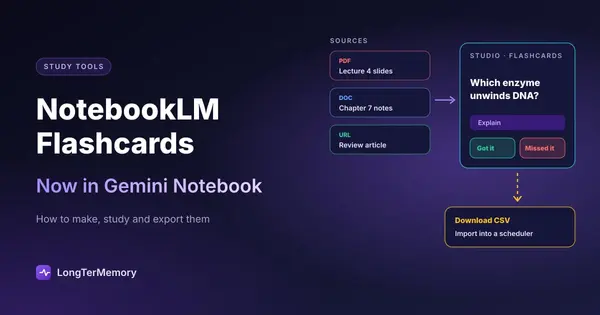
Short answer: NotebookLM makes flashcards from the sources in a notebook: open the Studio panel, choose Flashcards, and it writes a deck based on your PDFs, docs, slides and links. You can set the difficulty, the number of cards and a prompt that says what to focus on; while you study, you mark each card “Got it” or “Missed it”, ask it to explain an answer, and retake only the cards you missed. You can also download the deck as a CSV file. One thing to know first: in July 2026 Google renamed NotebookLM to Gemini Notebook. It’s the same product, and the old address redirects to the new one.
What the tool doesn’t do, as far as Google’s help center describes it, is schedule your reviews over days and weeks. This guide covers how to get a good deck, how to study it, and how to move it into a spaced repetition app when you need to remember it for longer than a week.
NotebookLM Is Now Gemini Notebook
Google announced the new name on July 16, 2026. Notebooks, sources and study aids carried over unchanged, notebooklm.google.com redirects to notebook.google.com, and the help center now lives under “Gemini Notebook Help”. Most students still search for NotebookLM, so we use both names in this guide. The flashcard feature itself predates the rename: it arrived on the website in September 2025 and in the Android and iOS apps in November 2025. Its other study features, like audio overviews and answers with citations from your sources, are covered in our comparison of AI study tools.
How to Make Flashcards in NotebookLM
- Create a notebook and add sources. Upload the material for one course or one exam: lecture slides, PDFs of chapters, your notes, web pages. You need edit access to the notebook to generate flashcards. Text-based PDFs give much better cards than scans; see PDF to flashcards for how to prepare them.
- Open the Studio panel and choose Flashcards. NotebookLM generates the deck in the background, so you can keep working while it’s created.
- Or customize first. Select the pencil icon next to Flashcards before generating. You can choose the difficulty (easy, medium or hard), the number of cards (fewer, standard or more), and write a prompt describing what you want.
Customization prompts that help
The prompt field is where most of the quality comes from. A few that work well:
- Scope: “Only cover lectures 4 to 6 and the chapter on enzyme kinetics.” Without this, the deck spreads across every source in the notebook.
- Exam focus: “Focus on definitions and mechanisms likely to appear in a short-answer exam. Skip historical background and examples.”
- Card size: “One fact per card. Keep answers short.”
- Audience: “I’m a second-year nursing student; assume I know basic anatomy.”
If one notebook holds a whole semester, make several smaller decks (one per topic) instead of a single giant one. They’re easier to check and easier to retake.
Studying the Deck
Google’s help center lists these controls in the flashcard viewer:
| Control | What it does |
|---|---|
| Got it! / Missed it! | Mark each card; progress is saved so you can resume later |
| Explain | Explains a card or its answer |
| Shuffle, restart, previous/next | Change the order or start over |
| Delete | Removes a card you don’t want |
| Retake | At the end: same cards, all cards, or only the cards you missed |
| Download | Saves the deck as a CSV file |
Two habits make the deck far more effective:
- Answer before you flip. Say or write the answer first. If you flip after two seconds and think “I knew that”, you’re recognizing, not recalling. Our guide to active recall techniques explains why the effort is the point.
- Use Explain on every missed card. A short explanation tied to your source turns a miss into understanding, which is exactly what a bare flashcard can’t do.
Check the cards against your sources
NotebookLM bases its study aids on the sources you upload, which makes errors less likely than with a chatbot answering from memory. They still happen: cards can oversimplify an “it depends”, pick up trivia from a footnote, or merge two ideas. Spot-check numbers, dates and definitions, delete what’s out of scope, and keep the syllabus or past papers next to you. Google’s help center doesn’t describe editing the text of a card, so the quickest fix for a bad card is to delete it, or to correct it in the CSV if you export the deck.
Flashcards vs Quizzes in NotebookLM
The Studio panel also makes Quizzes: practice questions with a hint button and the same customization (topic, difficulty, number). Use them differently:
- Flashcards for daily recall of facts, terms and steps. You produce the answer.
- Quizzes once a week to find gaps. Choosing among options is easier than recall, so a good quiz score with weak flashcards often means you recognize the material but can’t yet produce it.
Google’s help page documents the CSV download for flashcards, not for quizzes. If you want quiz-style questions from your own files that stay in a scheduled review cycle, see our guide to the AI quiz generator options.
The Missing Piece: When to Review Each Card
Retaking the missed cards is useful within a session. What NotebookLM doesn’t document is the next step: bringing each card back on its own schedule (tomorrow, then in four days, then in two weeks) based on how well you knew it. That is spaced repetition, and it’s the reason a dedicated app beats rereading a deck before the exam. Spacing reviews out over time is one of the best-supported findings in learning research; we summarize the evidence in the science of spaced repetition.
You have two ways to add it.
Schedule it yourself
Reopen the notebook tomorrow, in three days and in a week, and retake the deck, starting with “only cards you missed”. It works for one deck. With five subjects and twenty decks, keeping track of the dates becomes a job in itself.
Export the CSV to a spaced repetition app
- Open the flashcards and choose Download to save the CSV.
- Open the file in a spreadsheet and check that one column holds questions and the next holds answers. Delete any header row or extra columns the importer doesn’t need.
- Import it:
- Anki: File > Import, pick the CSV, set the separator to Comma and map the columns to Front and Back. Our guide to making Anki cards with AI has the details.
- Other apps: most spaced repetition apps import CSV or text. The best spaced repetition apps are compared on import options, algorithm and price.
One limit from Google’s help page: if the notebook uses a Google Play Books ebook as a source, the publisher’s restrictions can block the download.
NotebookLM vs Other Ways to Make AI Flashcards
| NotebookLM (Gemini Notebook) | ChatGPT | LongTerMemory | |
|---|---|---|---|
| Cards from your files | Yes, from notebook sources | Yes, from uploads | Yes, from PDFs, slides, notes |
| Grounded in your material | Yes | When you attach it | Yes |
| Customization | Difficulty, number, prompt | Anything you ask | Question type and source |
| Review schedule | Not documented | Not documented | Yes, spaced repetition |
| Export | CSV | Copy text | No |
| Mobile | Android and iOS apps | Android and iOS apps | Android and iOS apps |
ChatGPT added a similar flashcard feature in September 2026; we compare the workflow in ChatGPT flashcards. For a wider view, our guide to the best AI flashcard generator tools covers more options and a checklist for the cards they produce.
LongTerMemory takes the same starting point as NotebookLM (your own files) but is built around the review step: it generates questions from your material and schedules each one with spaced repetition, so there’s no CSV to move. It doesn’t have NotebookLM’s audio overviews or mind maps, and it doesn’t import CSV decks. If you already use NotebookLM to understand the material, the two can work side by side: one to learn the topic, the other to keep it.
A Weekly Routine With NotebookLM
For one course, about 20 minutes a day:
- After each lecture: add the slides to the course notebook and generate a small deck (standard size, medium difficulty) scoped to that lecture.
- Same day: study the deck once, answer before flipping, use Explain on every miss.
- Next day and three days later: retake “only cards you missed”, then all cards. Or, if you export, let your spaced repetition app decide.
- End of the week: a quiz on the week’s lectures to find gaps, then a few hand-written cards for whatever you got wrong.
FAQ
Does NotebookLM have flashcards?
Yes. In the Studio panel, choose Flashcards to generate a deck from the sources in your notebook. You can customize difficulty, number of cards and focus. NotebookLM is now called Gemini Notebook, and the feature is the same.
Can you export NotebookLM flashcards?
Yes. Google’s help center lists a CSV download in the flashcard viewer. Downloads can be blocked when a notebook uses a Google Play Books ebook as a source.
Can I import the cards into Anki?
Yes: download the CSV, check that questions and answers are in two columns, and use File > Import in Anki with the separator set to Comma.
Does NotebookLM use spaced repetition?
Google’s help center doesn’t describe a review schedule. You can mark cards and retake only the missed ones, but for reviews planned over weeks, use a spaced repetition app.
Can I edit NotebookLM flashcards?
The help center describes deleting cards and customizing a deck before generating it, not editing the text of a card. Fix wording in the exported CSV if you need to.
The Bottom Line
NotebookLM, now Gemini Notebook, is one of the best free ways to turn a stack of sources into a first deck, especially with a focused prompt and the Explain button. Use it to make and drill the cards, then give them a schedule, either by exporting the CSV to a spaced repetition app or with a tool that does both. If that’s what you need, try LongTerMemory free for 7 days: upload a chapter and it generates the questions and schedules every review.
Features checked against Google’s Gemini Notebook help center and Google’s announcements in October 2026. Google updates the product often; we update this page when the flashcard feature changes.