RemNote PDF to Flashcards: How It Works on Free and Paid Plans
How RemNote turns a PDF into flashcards: highlights, AI Cards, Learn PDF and image occlusion, what the free plan allows, and when another tool is faster.
Table of Contents
- The RemNote Reader in One Minute
- Method 1: Highlights and Manual Cards
- Method 2: AI Cards From a Highlight
- Method 3: Learn PDF
- Diagrams: Image Occlusion
- Scanned PDFs
- What Each Plan Allows
- A Workflow That Gets Good Cards
- When RemNote Is the Right Tool
- When Another Tool Is Faster
- FAQ
- Can RemNote make flashcards from a PDF?
- Is RemNote's PDF feature free?
- Does RemNote work with scanned PDFs?
- Can RemNote turn PowerPoint slides into flashcards?
- How does RemNote schedule PDF flashcards?
- The Bottom Line
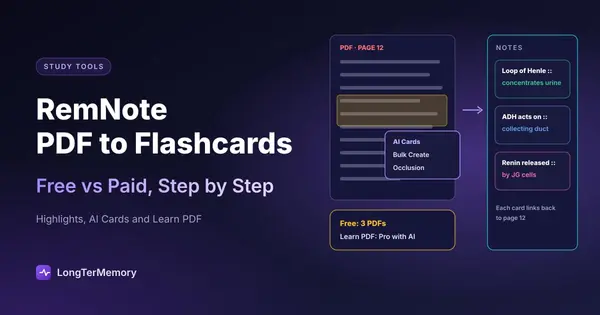
Short answer: RemNote turns a PDF into flashcards in three ways. You can highlight a passage and write the card yourself in the notes pane next to the PDF, you can click a highlight and choose AI Cards to get suggested cards from that passage, or you can let Learn PDF split the whole document into sections with summaries, flashcards and quizzes. Every card then goes into RemNote’s spaced repetition queue. The catch is the plan: the free plan lets you annotate only 3 PDFs, AI features use a monthly allowance of credits, and Learn PDF is listed only in Pro with AI ($216 a year).
That answer hides a lot of practical detail: which method gives the best cards, how far the free plan goes, and what to do with scanned PDFs. This guide walks through each one, with features and limits checked on RemNote’s pricing page and help center in October 2026.
The RemNote Reader in One Minute
When you open a PDF in RemNote, you get the Reader: the PDF in the center, a toolbar, a sidebar on the right, and a Notes pane (on the left by default) where your notes and cards live. You can attach a PDF to a document with Upload PDF/PPT in its Sources section. Slides (.pptx), Word files (.docx) and plain text are converted to PDF automatically.
The key idea is that everything you write in the Notes pane stays linked to the passage it came from. When you get a card wrong months later, one click takes you back to the page in the PDF. That link between card and source is what makes RemNote different from apps where a card is just a front and a back. We cover the wider note-taking side in how to use RemNote for notes and flashcards.
Method 1: Highlights and Manual Cards
This is the most reliable method, and it uses no AI credits.
- Highlight the passage. Select the highlight tool, drag over the text and click Highlight. With Auto Highlight on, it’s highlighted as soon as you release the mouse. For a table or figure, use Area Highlight (or hold Ctrl or Cmd and drag a box).
- Paste the reference. After a highlight, RemNote copies a reference and moves the cursor to the Notes pane. Paste it to keep the link to the page.
- Write the card. In RemNote’s editor, a line becomes a card when you separate the front and back with
::, for exampleFunction of the loop of Henle :: concentrates urine by creating a salt gradient. RemNote’s editor guide covers the other card types (cloze, multi-line and so on).
Writing the card yourself is slower, but it’s also where a lot of the learning happens: you have to decide what the passage really says. For dense material where every card matters (pharmacology, law, accounting standards), it’s often the best trade-off.
Method 2: AI Cards From a Highlight
Click an existing highlight and choose AI Cards. RemNote reads the passage and suggests several cards based on its main ideas; click a suggestion to add it to your notes. For a fuller set, or to change the options, use Bulk Create More AI Cards from the same menu. The Summary tab in the sidebar also has a Create AI Cards button that works on the whole document.
These features use AI credits. On the pricing page in October 2026, the free plan includes 250 credits a month and “AI cards from text, PDF & PPTs” is listed as 5 on the free plan, 50 on Pro and 1,000 on Pro with AI. In practice, the free plan is enough to try AI cards on a chapter, not to card a semester. Other tools that generate cards from your files are compared in our guide to the AI flashcard generator options.
Check the suggestions before you add them. AI cards from a single highlight are usually close to the text, which is good, but they can be too literal (testing the wording, not the idea) or split one concept across three near-duplicate cards. Keep the best one or two.
Method 3: Learn PDF
Learn PDF is RemNote’s guided mode. In the Reader’s sidebar, you say how well you know the content and click Generate Learning Materials. The AI tutor splits the PDF into sections and creates a summary, flashcards and quizzes for each. If the material is new to you, it suggests reading the summary first.
This is the closest RemNote gets to “upload a PDF, get a deck”. It’s listed only on the Pro with AI plan ($18 a month or $216 a year), which also includes an AI tutor chat for asking questions about the PDF.
Diagrams: Image Occlusion
For anatomy plates, circuit diagrams or maps, RemNote’s image occlusion hides parts of an image and asks you to recall them. In the Reader you can choose Occlusion Box Flashcard (each box you draw becomes a card) or Occlusion Tape Flashcard (freehand). The free plan includes 5 image occlusion cards; Pro removes the limit.
Scanned PDFs
If you can’t select the text in your PDF, it’s a scan: an image of each page. Highlights and AI cards need real text, so first run Run OCR with AI on the document. For a single figure or table, an area highlight followed by AI Convert to Text extracts the text. OCR works well on clean printed pages and less well on handwriting, faint photocopies and complex layouts. Our guide to turning handwritten notes into flashcards covers how to get better scans.
What Each Plan Allows
| Free | Pro | Pro with AI | |
|---|---|---|---|
| Price | $0 | $8/mo or $96/yr | $18/mo or $216/yr |
| Annotated PDFs | 3 | Unlimited | Unlimited |
| AI credits per month | 250 | 1,000 | 20,000 |
| AI cards from text, PDF and slides | 5 | 50 | 1,000 |
| Image occlusion cards | 5 | Unlimited | Unlimited |
| Max file size | 8 MB | 300 MB | 300 MB |
| Learn PDF | No | No | Yes |
| Notes and flashcards | Unlimited | Unlimited | Unlimited |
Figures from RemNote’s pricing page, October 2026. RemNote changes its plans from time to time; check before you subscribe.
The 3-PDF limit is the one that matters. A typical course has more than three PDFs: lecture slides, readings, a textbook. On the free plan, you’ll need to be selective (for example, one master PDF per course) or upgrade.
A Workflow That Gets Good Cards
For one lecture or chapter:
- Read first, card second. Skim the PDF once without making cards. Cards made on the first read tend to capture details instead of the main ideas.
- Highlight only what you’d expect on the exam. Definitions, mechanisms, numbers you must know, and the “why” behind them.
- Make cards from the highlights: manual cards for the core ideas, AI Cards to speed up the rest.
- Edit before you review. Delete duplicates, split cards with lists for answers, and rewrite any card you can answer from the wording alone.
- Review daily. RemNote schedules each card with spaced repetition. It uses the SM-2 algorithm by default and lets you switch to FSRS, and you can set an exam date so reviews are planned around it.
The general principles of a good PDF-based card (one idea, a clear question, no giveaways) are the same in any app; our PDF to flashcards guide explains them with examples.
When RemNote Is the Right Tool
- You want your notes and cards in one place, linked to the source page.
- You’ll use it for months. The Reader and the editor take a few evenings to learn, and they pay off over a long course.
- You have Anki decks to bring along. RemNote imports Anki
.apkgfiles. - You annotate a lot. Highlights, notes and cards live together.
When Another Tool Is Faster
- You have many PDFs and a tight budget. The free plan’s 3-PDF limit runs out quickly.
- You want a deck from a whole chapter now, without learning a note-taking system. Learn PDF does this, but only on the top plan.
- Your material is mostly slides. RemNote converts them, but a tool built around turning lecture slides into flashcards may need fewer steps.
LongTerMemory takes a narrower approach: you upload PDFs, slides, Word files or photos of your notes, it generates questions from that material only, and it schedules every one with spaced repetition on the web, iOS and Android. It doesn’t do note-taking, highlights, image occlusion or Anki import, so it isn’t a RemNote replacement if those are what you use. If you’re weighing RemNote against other options, see Knowt vs RemNote, our list of the best flashcard apps for PDFs and the best Anki alternatives.
FAQ
Can RemNote make flashcards from a PDF?
Yes. You can write cards from highlights in the Notes pane, use AI Cards on a highlight or on the whole document, or use Learn PDF to generate summaries, flashcards and quizzes section by section.
Is RemNote’s PDF feature free?
Partly. Free users can annotate up to 3 PDFs and get 250 AI credits a month, with 5 AI card runs from text, PDF or slides. Unlimited PDFs need Pro ($96 a year), and Learn PDF is listed in Pro with AI ($216 a year).
Does RemNote work with scanned PDFs?
Yes, after OCR. Run “Run OCR with AI” on the document so the text can be highlighted and used for AI cards. Results depend on scan quality.
Can RemNote turn PowerPoint slides into flashcards?
Yes. Slides uploaded as .pptx are converted to PDF automatically, and you can then highlight them and create cards the same way.
How does RemNote schedule PDF flashcards?
Like any other RemNote card: with spaced repetition, using SM-2 by default with FSRS as an option, and with an optional exam date to plan reviews around your test.
The Bottom Line
RemNote’s PDF workflow is one of the best if you want your notes, highlights and cards in one linked system, and the manual method is free. It gets expensive if you want AI to do the carding across many PDFs. If your goal is simply to turn a stack of course PDFs into scheduled questions, try LongTerMemory free for 7 days: upload a chapter, check the questions it generates, and let it schedule the reviews.
Features and prices checked on remnote.com/pricing and the RemNote help center in October 2026.